 Convo 101Help Center
 One call · Start to finish
Everything you need to get value from Convo.
Set it up, use live help, and turn the conversation into action. Follow the twelve essentials below in about ten minutes.
Start with setup01 · Before the call
Give Convo the right starting point.
Complete the foundation once, then add the answers and context you want available in every conversation.
[01]Install and sign inGet the desktop app ready to hear both sides.
- Download Convo. Open convo-setup.dmg and drag Convo into Applications.
- Open Convo, choose Continue with email, and sign in with the account used for your subscription.
- Allow microphone access. Also allow screen recording so Convo can transcribe the other side.
[02]Set Convo up in SettingsTurn on live help and connect the meeting context.
- Open Settings → Live Assistant and turn Enable on.
- Under Preferences → Transcription language, choose the language used on the call. Use Auto-detect only when one call switches languages.
- Connect Google Calendar or Outlook in Settings → Integrations for reminders, attendee context, and correctly matched summaries.
- Connect the CRM, Slack, and Notion when you want calls to become records, notes, and tasks automatically.
[03]Add Instant CuesPrepare your best answer for recurring moments.
- Open Instant Cues in the sidebar. Three examples are already there.
- Choose Add cue. In When, describe the situation. In Then say, write the response you want ready.
- Start with the moments that most often decide your calls. You can add up to ten cues.
[04]Add your knowledgeMake answers come from your material, not generic information.
- Open Ask AI → Connect.
- Add a PDF, TXT, or Markdown file up to 10 MB; paste an HTTPS website; or add short material manually.
- A strong first set is your one-pager, pricing, and top FAQs. Add up to ten sources.
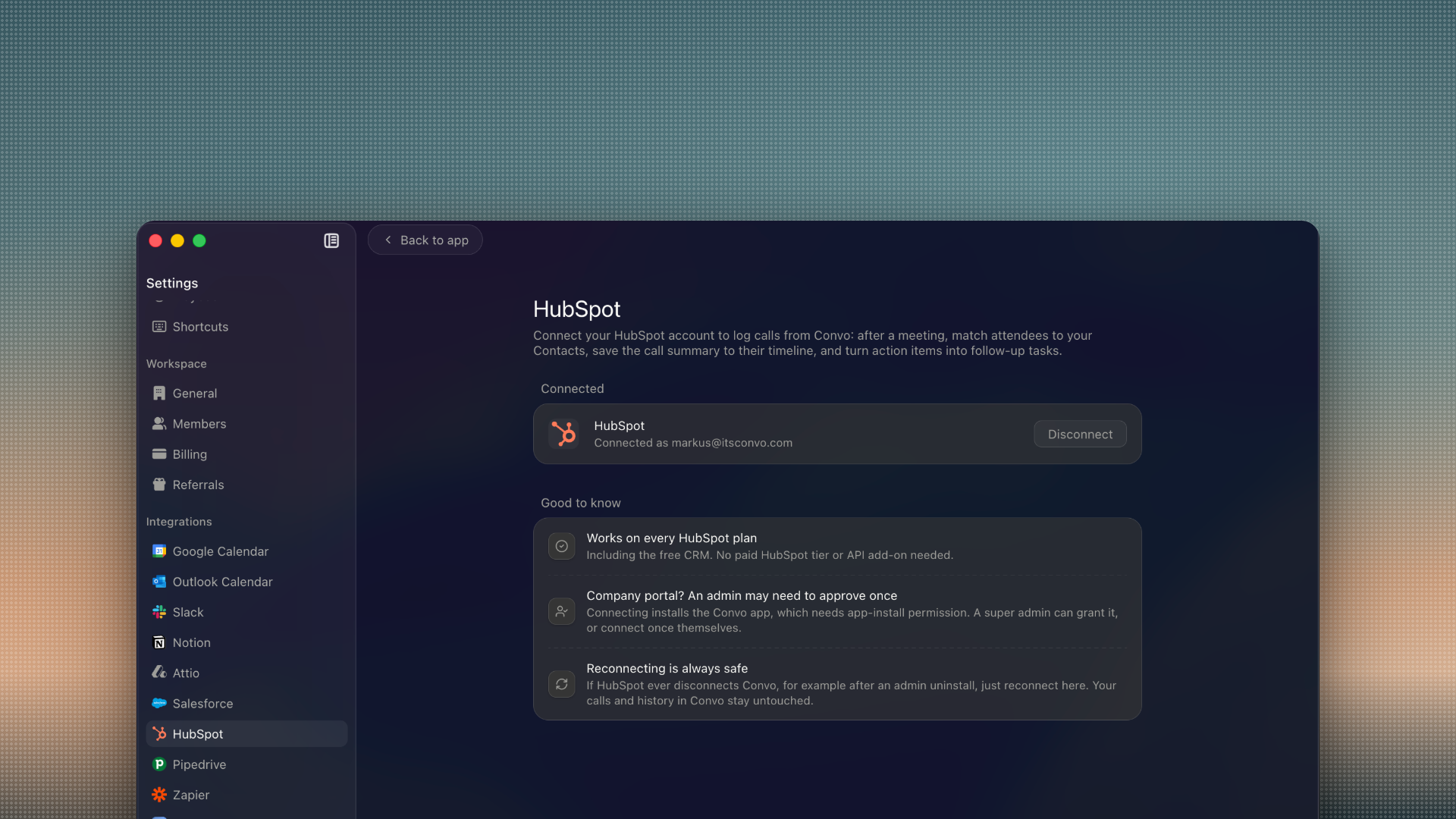
Calendar gives the meeting context. The other integrations decide where the summary and next steps go afterward.
02 · During the call
Keep your attention on the conversation.
These are the actions worth learning. Everything else stays out of the way until the moment calls for it.
[05]Learn these four keys firstUse Convo without looking away from the meeting.
The shortcuts work even while Convo is in the background. You can change them later under Settings → Shortcuts.
The normal order is ⌘+U, then ⌘+L, then ⌘+Enter whenever you need help.
[06]Start and finish a callControl when your recording starts and ends.
- Click Record in the dashboard or press play in the toolbar.
- If you join without recording, Convo detects the meeting and asks whether to start.
- When your calendar is connected, Convo reminds you shortly before the meeting.
When your call ends, click Pause, then Done to finish the recording. An active recording continues when you hide the toolbar or leave the meeting. With Auto-stop on silence enabled in Settings, recording also ends after ten minutes of silence.
You can also choose Stop Recording from the Convo icon in your Mac's menu bar. Choose Quit Completely to exit Convo; regular Quit keeps it available in the menu bar.
Works with Zoom, Google Meet, Teams, Webex, Slack, or anything that plays audio on your computer.
[07]The assistant works on its ownReceive help when a meaningful pattern appears.
- Questions pull answers from your cues, documents, and past calls.
- Buying signals and objections arrive with a next question worth asking.
- Talk-balance nudges help when you have dominated the last two minutes.
- Near the end, Convo flags important playbook questions still uncovered.
A suggestion stays for about ten seconds. Hover to hold it or pin it to keep it visible.
[08]Open Live InsightsTrack the playbook and transcript while the call develops.
- Playbook checks off questions as the buyer covers them. Choose BANT, SPICED, MEDDPICC, customise one, or build your own.
- Transcript shows the live conversation labelled by speaker.
[09]Ask AI, any moment in the callRequest an answer only when you want one.
- Context uses the live conversation, your documents, and past calls with this person.
- Screen answers from what is currently on your display.
- Search checks the web for a current fact.
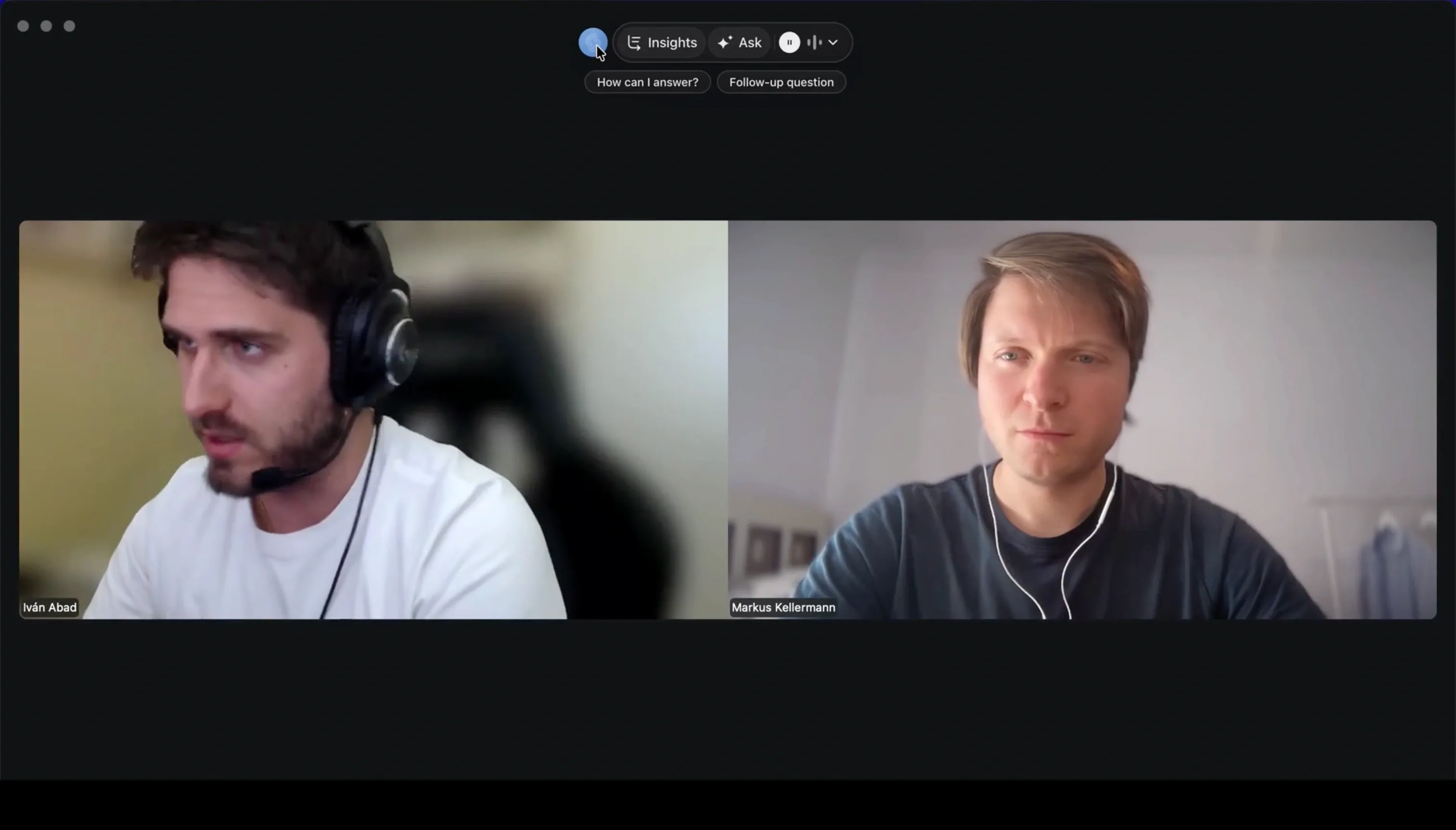
- Use “How can I answer?” or “Follow-up question” when you do not want to type.
When Convo recognises the person, it can answer across your history with them. Use the pill at the top to limit it to this call.
Your turn · 1 of 4
Hide or show the toolbar.
Click the keycaps. In a real meeting, the shortcut works while Convo is behind the call.
Hide or show the toolbar. Click the keycaps. In a real meeting, the shortcut works while Convo is behind the call.
03 · After the call
Turn the conversation into the next move.
Review the facts, learn from the call, and send the work onward before the context fades.
[10]Review the callFind the summary, notes, transcript, and actions together.
- Overview contains the summary and action items you can check off.
- Notes keeps your own notes on the conversation.
- Transcript labels each speaker. Select a timestamp to replay from that moment.
- Use the ask box to question the saved meeting in the same way you did live.
[11]Get your feedbackSee what landed and what to change next time.
- Review what went well, grounded in quotes from the conversation.
- See areas for improvement with an alternative line to try.
- Take one focus into the next call.
- Inspect talk-time split, longest monologue, and words per minute.
Feedback needs a few minutes of conversation before it can generate.
[12]Follow up and syncMove the deal forward without starting from a blank page.
- Edit the drafted follow-up email, then copy it or open it in Gmail.
- Send the summary to Slack, copy a share link, or download the transcript.
- Link Salesforce, HubSpot, Pipedrive, or Attio. Convo matches the people, writes the summary to their record, and turns action items into tasks.
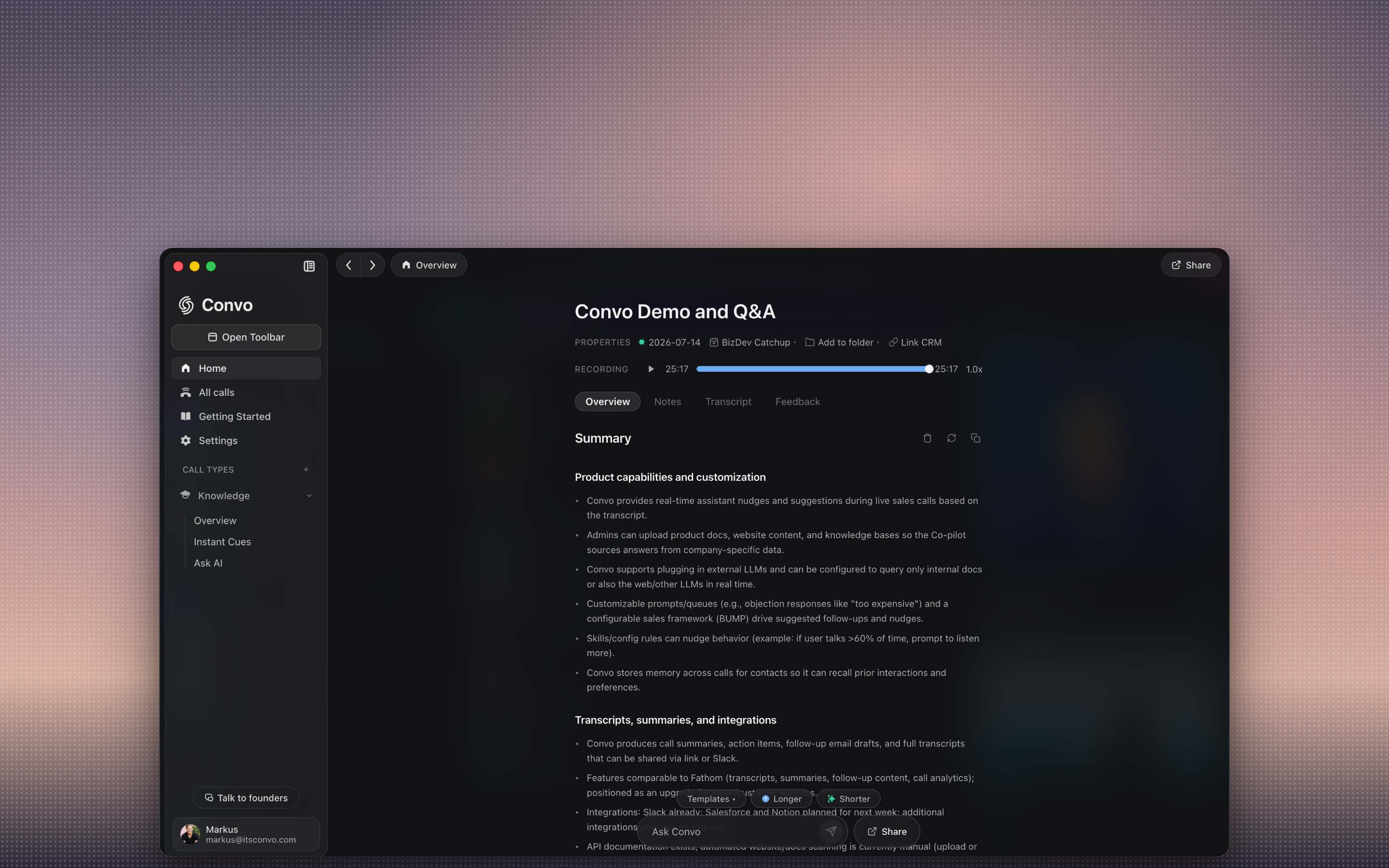
Overview, Notes, Transcript, and Feedback stay together on the saved call.