

Markus Kellermann Founder & CEO
How to Connect Your Meetings to Claude, ChatGPT, and Cursor with MCP
Markus Kellermann Founder & CEO
Set up an MCP server to access your meeting transcripts, summaries, and action items from any AI assistant. Step-by-step guide with real examples.
AI Knows Everything Except What You Discussed Yesterday
I spend about 15 hours a week in meetings. That's not unusual for a founder. What is unusual is how disconnected my AI tools were from the conversations that actually drive my business.
I use Claude Code daily. I use ChatGPT for research. I use Cursor when I'm deep in code. But when I asked any of them "what did we decide in the meeting with Sarah last week?" the answer was always the same: "I don't have access to your meeting data."
In this post, you'll learn:
- What MCP is and why it matters for your workflow
- How to set up a Claude Code MCP server that connects to your meetings
- How ChatGPT MCP and Cursor MCP connections work
- Real examples of cross-meeting intelligence that save hours per week
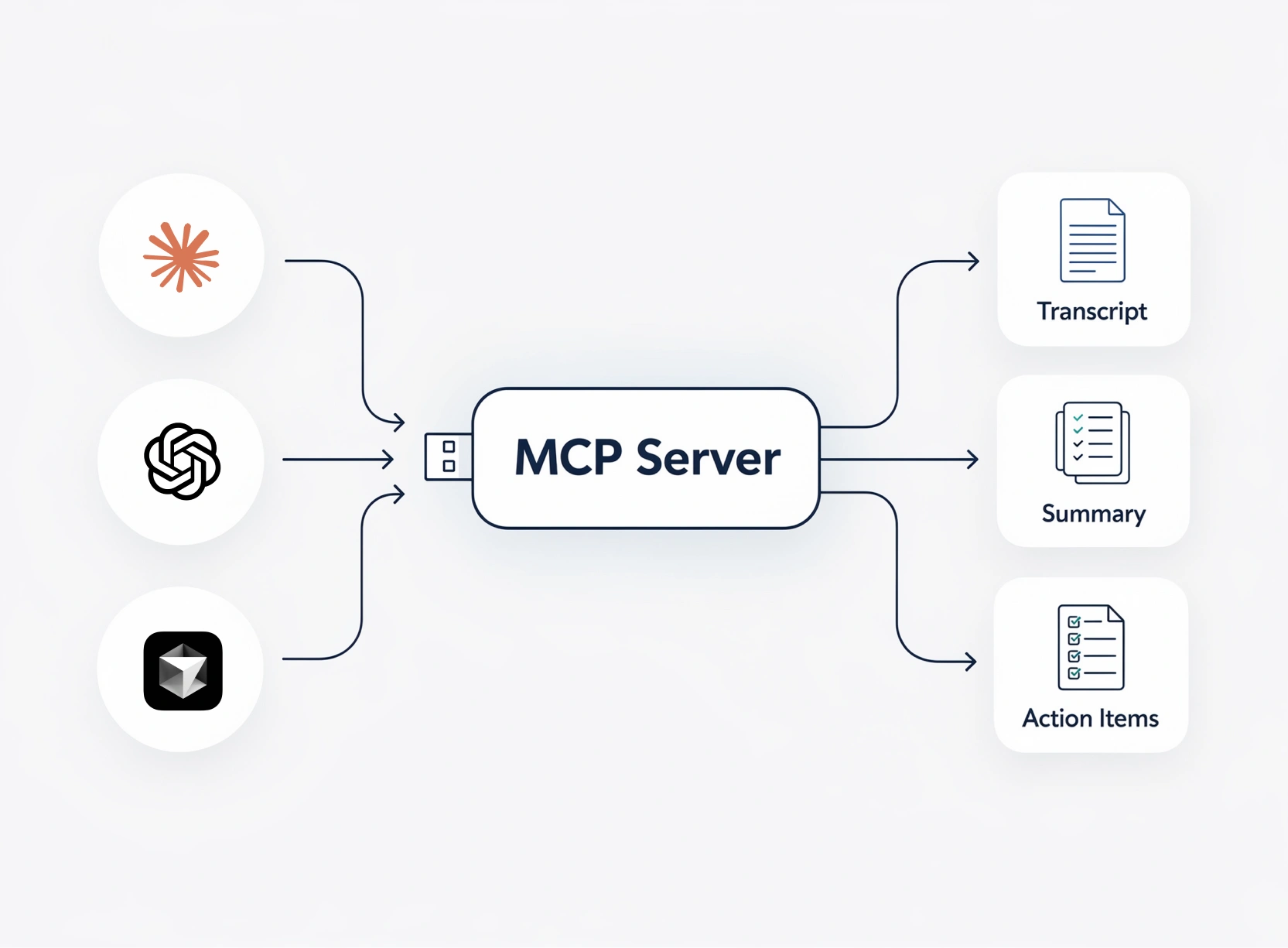
What Is MCP (and Why Should You Care)?
Think of MCP like a USB port for AI assistants. Before USB, every device needed its own proprietary cable. MCP does the same thing for AI: it creates a standard way for any AI assistant to connect to any data source.
Model Context Protocol is an open standard created by Anthropic. It lets AI assistants like Claude, ChatGPT, and Cursor connect to external tools and data through a simple server that runs on your machine. The AI sends requests through MCP, the server fetches data from the source, and returns it to the AI.
The key difference from traditional APIs: you don't write code. You install an MCP server, configure it once, and then just talk to your AI assistant in natural language. Ask it a question, it calls the right tool, and gives you the answer.
| Without MCP | With MCP |
|---|---|
| Copy-paste transcripts into Claude | "What did Sarah say about the budget?" |
| Open your meeting app, find the recording, read the summary | "Give me a digest of all my meetings this week" |
| Write follow-up emails from memory | "Draft a follow-up email from my call with Petros" |
| Manually check action items across 10 meetings | "What action items am I behind on?" |
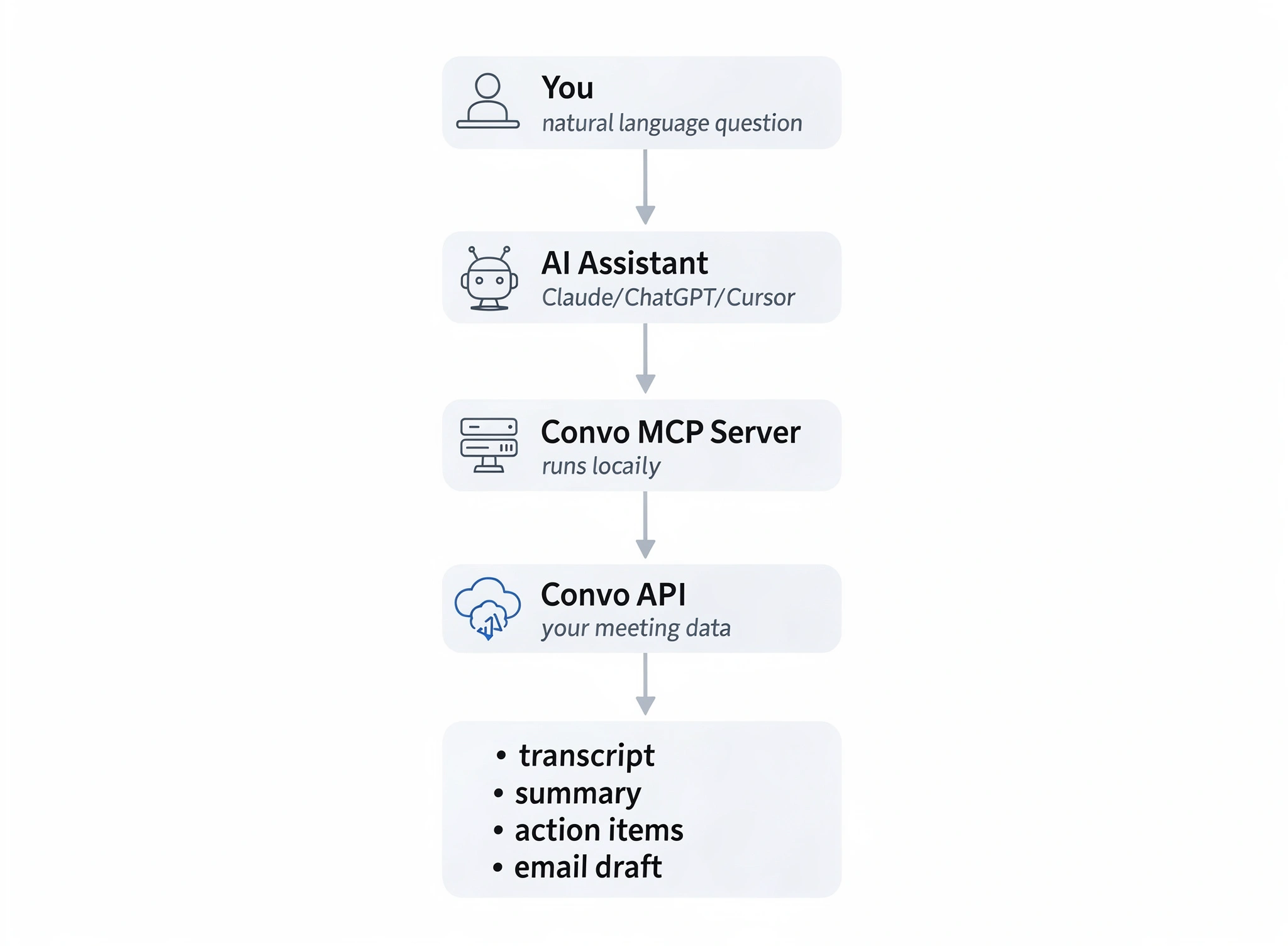
How MCP Servers Work (30-Second Version)
The architecture is simple:
You (natural language) → AI Assistant → MCP Server → Your Data
- You ask your AI assistant a question
- The AI recognizes it needs external data
- It calls the MCP server with the right tool and parameters
- The MCP server fetches the data (in our case, from Convo's API)
- The AI gets the response and answers your question
The MCP server runs locally on your machine. Your data doesn't go through any third party. The AI assistant just gets the specific information it needs to answer your question.
This is especially powerful for meeting-heavy roles like sales, consulting, recruiting, and customer success where context from past conversations directly affects performance.
Setting Up Your First MCP Server (Claude Code)
I'll walk through connecting your meeting data to Claude Code. The same approach works for Claude Desktop and Cursor.
Step 1: Get your API key
You need a Convo account with a Starter plan or above. Open the Convo app, go to Settings, then API Keys, and create a new key. It starts with `convo_` and is only shown once, so copy it immediately.
Step 2: Install the MCP server
npm install -g @itsconvo/mcp-serverThat's it. One command. The server is now available as `convo-mcp` on your machine.
Step 3: Connect to Claude Code
claude mcp add convo convo-mcp -e CONVO_API_KEY=convo_your_key_hereRestart Claude Code. You now have 14 meeting tools available in your AI assistant.
For Claude Desktop
Add this to your Claude Desktop config file (`~/Library/Application Support/Claude/claude_desktop_config.json` on macOS):
{
  "mcpServers": {
    "convo": {
      "command": "convo-mcp",
      "env": {
        "CONVO_API_KEY": "convo_your_key_here"
      }
    }
  }
}
For Cursor
Same config format as Claude Desktop, added to your Cursor MCP settings.
For Claude on the web (claude.ai)
Claude web can't run local processes, so it connects to Convo's hosted MCP server as a custom connector instead. No API key, no npm install. You need two things: a paid Claude plan (Anthropic limits custom connectors to paid tiers) and a Convo Starter plan or above.
- In Claude, click your workspace name, then Settings, then Connectors
- Click Add custom connector
- Name it Convo and use the URL `https://www.itsconvo.com/api/mcp`
- Leave the advanced OAuth fields empty, click Add, then Connect
- A Convo sign-in page opens. Sign in with your Convo account (email and password, or Google sign-in), and Claude finishes the connection automatically
To try it, start a new chat and ask: "What meetings did I have this week?" Claude asks for permission the first time it uses a Convo tool. If Convo doesn't come up in the answer, open the search and tools menu under the chat box and check that the Convo connector is turned on for that chat.
A few things that trip people up:
- The connector shows as disconnected right after signing in. Your Convo account is on the free plan. The hosted MCP server needs Starter or above.
- The sign-in page never appeared. Your browser blocked the popup. Allow popups for claude.ai and click Connect again.
- You want to disconnect. Remove the connector in Claude's settings. You can also revoke the "Claude MCP" API key from the Convo app, which cuts access instantly.
The same connector works on Claude Desktop and Claude mobile, since connectors sync across your Claude account.
What You Can Actually Do With It
Here's where it gets interesting. This isn't just "read a transcript." The Convo MCP server has 14 tools, including five that work across your entire meeting history.
Single Meeting Tools
| Tool | What it does |
|---|---|
| `meetings_get_transcript` | Full transcript with speaker names and timestamps |
| `meetings_get_summary` | Key points, decisions, and action items |
| `meetings_get_feedback` | Communication coaching: scores, strengths, growth areas |
| `meetings_ask` | Ask any question, AI answers from the transcript |
| `meetings_draft_email` | Generate a follow-up email referencing actual discussion points |
Cross-Meeting Intelligence
This is what makes it more than an API wrapper.
| Tool | What it does |
|---|---|
| `intelligence_prepare` | Searches past meetings with a person or company, pulls all summaries and open action items, returns a briefing |
| `intelligence_weekly_digest` | All meetings from a time period with total time, decisions, and action items consolidated |
| `intelligence_find_action_items` | Every action item across all recent meetings, filterable by owner |
| `intelligence_prepare_for_contact` | Pull the Convo Memory briefing for one contact by email. Topics, open action items, recent meetings, unanswered questions. Requires Professional or Enterprise. |
| `intelligence_unresolved_threads` | List action items still open across all contacts. Useful for "what is overdue this week?" prompts. Requires Professional or Enterprise. |
The cross-meeting tools don't consume AI credits. They read cached summaries and aggregate them. So you can run `intelligence_weekly_digest` or `intelligence_find_action_items` without worrying about your usage limits.
If you want to see how these tools work with your own meetings, set up Convo and install the MCP server. The whole process takes under 5 minutes. Full API documentation and MCP setup guide are available.
Real Examples from My Workflow
Morning prep (2 minutes instead of 20)
Before my first meeting of the day, I ask Claude: "Prepare me for my call with the Meridian team." It searches my past meetings, finds five previous conversations, and returns:
- What we discussed last time (pricing options, API access, onboarding)
- Open action items I committed to (send proposal, fix calendar bug)
- Key decisions already made (flexible billing, webhooks included)
- Suggested talking points for today
That used to take 20 minutes of scrolling through notes. Now it takes a question and a 10-second wait.
Weekly review (Friday afternoon)
"Give me a digest of all my meetings this week." I get back: 12 meetings, 1.5 hours total, 8 decisions made, 15 action items across 4 different people. Grouped and prioritized. I scan it in 2 minutes, flag what's overdue, and I'm done.
Follow-up blitz (after a busy day)
"Draft follow-up emails for all my calls today." The AI finds today's meetings, pulls the summaries, and drafts a personalized email for each one. I review, tweak the tone, and send. Five follow-ups in under 5 minutes instead of 45 minutes of writing.
Mid-conversation context (during a call)
I'm on a call and the client references a conversation from two months ago. Instead of saying "let me check my notes," I ask Claude Code in a side window: "What did we discuss with Docandu about compliance requirements?" The answer appears in seconds, with the exact points from that meeting. I respond confidently without breaking the flow.
This is the real-time meeting intelligence workflow that traditional meeting minutes tools can't replicate. Your AI assistant has the full history and can surface it in seconds.

ChatGPT MCP and Other Assistants
MCP support is expanding fast. As of July 2026:
| Assistant | MCP Support | How to Connect |
|---|---|---|
| Claude Code | Native | `claude mcp add` command |
| Claude Desktop | Native | Custom connector or config JSON file |
| Claude Web | Remote servers (custom connectors) | Settings > Connectors > Add custom connector |
| Cursor | Native | MCP settings panel |
| ChatGPT | Remote servers only (SSE/HTTP) | Developer Mode > Apps > Advanced Settings |
| Windsurf | Native | MCP config |
What About Privacy?
Three things to know:
- The MCP server runs locally. It's a process on your machine, not a cloud service. Your meeting data travels from Convo's API directly to your AI assistant.
- You authenticate with your own API key. The MCP server only accesses meetings tied to your account.
- AI assistants see only what you ask for. If you ask about one meeting, the AI gets that meeting's data. It doesn't bulk-download your entire history.
Your meeting recordings stay on your device. The MCP server adds a secure, authenticated bridge between your local data and your AI assistant.
Common Mistakes When Setting Up MCP Servers
Forgetting to restart. After adding the MCP config, Claude Desktop and Cursor need a restart. Claude Code picks it up automatically after `claude mcp add`.
Wrong API key format. Convo keys start with `convo_`. If you're getting "Invalid API key" errors, check for trailing spaces or missing characters.
Using the wrong Node version. The Convo MCP server requires Node.js 18+. Run `node --version` to check. If you're below 18, upgrade with `nvm install 18` or download from nodejs.org.
Assuming mobile is out. Local MCP servers run on desktop only, but Claude's custom connector also works on Claude mobile, since connectors sync across your Claude account. Set it up once and your phone has it too.
What's Next for MCP and Meetings
We're early. MCP is less than a year old and already supported by Claude, Cursor, Windsurf, and dozens of other tools. The trajectory looks like what happened with mobile apps in 2010: every service that has an API will eventually have an MCP server.
If you also want to know what people say about your product outside of meetings, I built Rumoro for that. It tracks mentions on Reddit, X, Hacker News and GitHub, and its MCP server works with Claude and Cursor the same way Convo's does.
For meetings specifically, I think the combination of local recording + MCP changes how professionals interact with their meeting history. Instead of meetings being black holes where information goes in and rarely comes out, they become a searchable, queryable knowledge base that your AI assistant can tap into anytime.
If you take five meetings a week, that's 250 conversations a year. All that context, all those decisions, all those commitments. Accessible with a question. Pair that with good virtual meeting etiquette and proper meeting cadence, and you're turning your meetings from a time sink into a genuine competitive advantage.
Frequently Asked Questions
What is an MCP server? An MCP (Model Context Protocol) server is a local program that connects AI assistants to external data sources. It follows an open standard so any compatible AI assistant can use it. Think of it as a plugin that gives your AI access to specific tools and data.
How do I set up Claude Code MCP with my meetings? Install the Convo MCP server with `npm install -g @itsconvo/mcp-server`, then run `claude mcp add convo convo-mcp -e CONVO_API_KEY=your_key`. You need a Convo account with a Starter plan or above. Full setup takes under 5 minutes.
Can I use Convo with Claude on the web? Yes. In Claude, go to Settings > Connectors > Add custom connector, name it Convo, and use the URL `https://www.itsconvo.com/api/mcp`. Sign in with your Convo account and you're connected. No install needed, and the same connector works on Claude Desktop and mobile.
Does ChatGPT support MCP servers? ChatGPT MCP support is expanding. As of July 2026, you can connect MCP servers to ChatGPT through various integration methods. The Convo MCP server works with any MCP-compatible client using the stdio transport.
Is MCP server data private? Yes. The MCP server runs locally on your machine. Your data goes directly from the API to your AI assistant. Nothing is stored on third-party servers. You authenticate with your own API key and only access your own meetings.
What AI assistants work with MCP servers? Claude Desktop, Claude Code, Cursor, and Windsurf have native MCP support. More assistants are adding support as the protocol matures. Any client that implements the Model Context Protocol can connect to any MCP server.
How many MCP tools does the Convo server have? 14 tools covering single-meeting operations (transcripts, summaries, feedback, email drafts) and cross-meeting intelligence (meeting prep, weekly digest, action item tracking, per-contact memory, unresolved threads). Plus 3 built-in prompt workflows. See the full list in the documentation.
Do MCP server tools use AI credits? Some do, some don't. Read-only tools like `meetings_list`, `meetings_get_transcript`, and all cross-meeting intelligence tools are free. AI generation tools like `meetings_ask` and `meetings_draft_email` consume credits from your Convo plan.
Markus is the founder of Convo, building an AI meeting assistant that automates everything after the call. Years of experience building AI products. Believes technology should help people in the moment, not just analyze the past.
Ready to transform your meetings?
Join professionals using Convo to feel confident in every conversation.
Get StartedCONTINUE READING